Stay Connected to Your Project - Anytime, Anywhere
Your Concept 32 Project Dashboard is designed to keep everything related to your project organized in one convenient place. From project updates and design drawings to invoices, messages, and installation schedules, your portal gives you direct access to your project information 24/7. Log in to your dashboard
Whether you’re using the dashboard on your desktop or adding the mobile app to your phone’s home screen, the goal is simple: make communication easier, keep your project organized, and help you stay informed every step of the way.
Customer Dashboard Guide
Getting Started
1. Log Into Your Portal
Once your project begins, you’ll receive access to your personal client portal.
From the portal, you can:
• Track project progress
• View updates and timelines
• Message the Concept 32 team
• Review drawings and documents
• Access invoices and contracts
• Save design inspiration
• Receive notifications about project activity
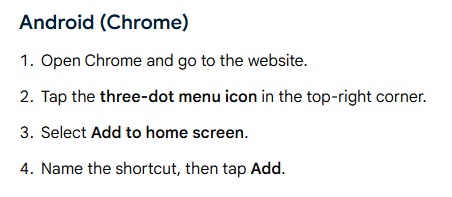
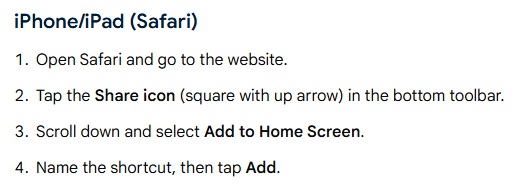
2. Add the Project Portal to Your Phone
For the best experience, we recommend adding the portal to your mobile device home screen.
This allows the portal to function similarly to an app and gives you quick access to:
• Push notifications
• Messages
• Project updates
• Documents and schedules
3. Enable Notifications
When prompted, be sure to allow notifications.
Notifications help you stay informed when:
• New messages are posted
• Documents are uploaded
• Project updates are added
• Invoices become available
• Project stages change
You’ll receive both in-app notifications and push notifications on supported devices.
Understanding the Home Screen
Your home screen displays all active projects connected to your account.
From here you can:
• Open a project
• View project status
• See overall progress
• Access inspiration and resources
• Navigate quickly to updates and files
Each project card provides a quick overview so you can immediately see where your project stands.
Inside Your Project
Once inside a project, you’ll see several tabs that organize your project information.
Timeline
The Timeline provides a step-by-step view of your project progress.
Here you can:
• View current project stages
• See completed milestones
• Follow upcoming phases
• Track overall progress
Important:
Project stages are designed to provide direction and visibility throughout the process. Estimated durations may shift as design decisions, material availability, approvals, scheduling, and field conditions evolve.
The timeline should be viewed as a project roadmap rather than an exact calendar.
Updates
The Updates section is where the Concept 32 team shares important project information.
Examples include:
• Scheduling updates
• Installation planning
• Material arrival notifications
• Design progress
• Field notes and project changes
Checking Updates regularly is the best way to stay informed on current project activity.
Messages
The Messages tab is the fastest and most organized way to communicate with our team.
We strongly encourage clients to use portal messaging whenever possible.
Why?
Keeping communication inside the portal:
• Creates a clear communication history
• Keeps the entire team informed
• Reduces missed information
• Helps us respond more efficiently
• Keeps your project organized in one place
• Instead of splitting communication across text messages, emails, phone calls, and voicemails, the portal • keeps everything connected directly to your project.
If you ever need to reference a previous conversation, it’s all stored inside the project thread.
Documents
The Documents tab stores all important project files in one location.
This may include:
• Design drawings
• Renderings
• Material selections
• Signed approvals
• Contracts
• Installation schedules
• Invoices and related paperwork
Important:
Please refer to the Documents tab for the most current versions of drawings and project information.
Rather than relying on memory or older email attachments, the portal ensures everyone is reviewing the latest approved documents.
Details
The Details section contains key project information and specifications related to your job.
This area may include:
• Project descriptions
• Scope information
• Status details
• General project references
Inspiration
The Inspiration section allows you to save and share design ideas directly with the Concept 32 team.
This is a great place to upload:
• Photos you like
• Design inspiration
• Storage ideas
• Material references
• Finish preferences
Sharing inspiration through the portal helps keep your ideas tied directly to your project for easier collaboration during design.
Invoices
The Invoices tab provides quick access to project billing and payment information.
You can:
• View invoices
• Review balances
• Reference payment history
• Access project billing documents
Best Practices for Using the Portal
➨ Use Portal Messaging First
For the fastest communication and best project organization, use the portal messaging system whenever possible.
This keeps communication centralized and allows our team to track conversations accurately.
➨ Check Documents Before Requesting Files Again
The latest drawings, approvals, schedules, and project documents are typically already available in your Documents tab.
This helps avoid confusion caused by outdated files or older revisions.
➨ Enable Push Notifications
Push notifications are one of the easiest ways to stay informed without constantly checking the portal manually.
➨ Review Updates Regularly
Project activity can change quickly during design, production, and installation phases. Regularly reviewing updates helps prevent surprises and keeps expectations aligned.
Frequently Asked Questions
Where do I find my latest drawings?
Visit the Documents tab inside your project. This is where the most current project files and approvals are stored.
I forgot my install or delivery date. Where can I check?
Project schedules, updates, and related documents are typically posted in the Timeline, Updates, or Documents sections.
What’s the fastest way to reach the Concept 32 team?
Portal messaging is the preferred communication method because it keeps conversations organized and connected directly to your project.
Can I still call or email?
Yes. However, portal messaging creates the clearest communication history and helps our team respond more efficiently.
Why do project timelines sometimes change?
Custom projects involve many moving parts including design revisions, approvals, material lead times, trade coordination, and scheduling availability. The timeline is intended to provide guidance and visibility throughout the process.
Can I upload inspiration photos from my phone?
Yes. The portal works on desktop and mobile devices, allowing you to easily upload and share inspiration images.
Do I need to enable notifications?
Yes — we strongly recommend enabling notifications so you receive important project alerts and updates in real time.
One Central Place for Your Project
Your Project Dashboard is designed to simplify communication, improve transparency, and keep your entire project organized from design through installation.
If you ever have questions about how to use the portal, our team is happy to help.